Published Last updated
How to make a Google review link and QR code
Where to find the link, why the QR code needs a computer, and three short requests that stay inside Google's rules.

Founder, ProveWorth
Key Takeaways
- 1Select Read reviews, then Get more reviews (the Share icon), and copy the link or save the QR code.
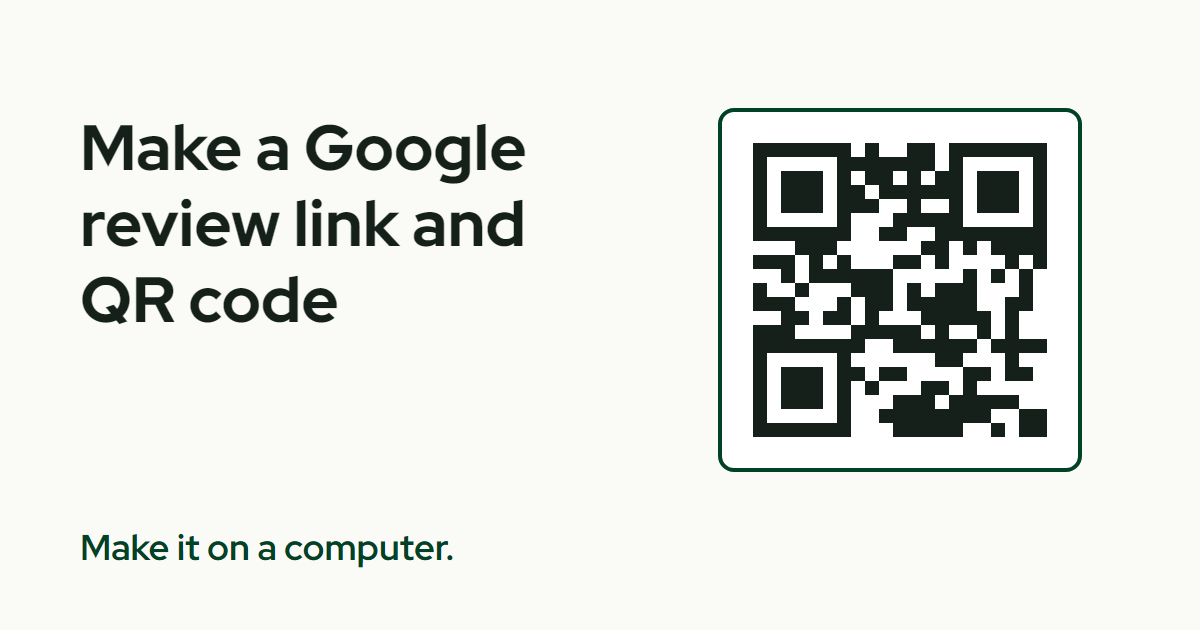
- 2Google says QR codes can only be made in a computer browser, so make yours at a computer.
- 3Test the link on your phone and check the business name and location before you print anything.
- 4Ask for an honest review. Leave out star ratings, keywords, staff names and offers.
- 5Send the same request to everyone you served, including the ones who seem unhappy.
Open your Business Profile on a computer, select Read reviews, then select Get more reviews (the Share icon). Copy the link, or save the QR code as an image. QR codes can only be made in a computer browser, not on a phone.
The rest of this page covers testing the link, where to put it, and three short requests you can send. Each one stays inside Google's rules.
Where do I find my Google review link?
Google keeps it in one place. Sign in to the Google account that manages your Business Profile, then follow these steps.
- Open your Business Profile on a computer.
- Select Read reviews.
- Select Get more reviews (the Share icon).
- To copy the link, select Copy.
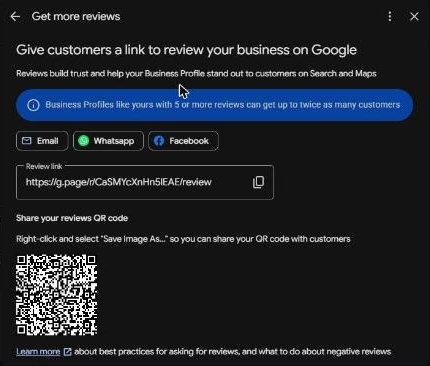
This is the link Google gives you for review requests. Paste it into a note on your phone so you can find it again.
How do I get the QR code?
It sits in the same Get more reviews panel. Google says review QR codes can only be generated in a computer browser, not on mobile devices.
Right-click the QR code and select Save image as. Then drop the file into a receipt template, a thank-you card or an email.
Your phone can still scan a QR code. It just can't make one. So do this part at a computer, once, and keep the file.
Should I build my own link from a Place ID?
I wouldn't. Google's help page names the Get more reviews panel as the way to get your link and QR code. It doesn't list other formats.
Third-party tools sell short links and hand-built Place ID links. Google's developer documentation says Place IDs may change over time and recommends refreshing stored ones older than 12 months. A link you built by hand can go stale without telling you.
How do I know the link opens the right business?
Test it before you print anything. Open the link on your phone, check the business name and the location, then close it without posting a review.
That is my advice, not a Google rule. A wrong location on a stack of printed cards is an expensive typo.
Where can I put the link or QR code?
Google suggests sending the link by email, WhatsApp message or Facebook post. It also suggests the QR code on receipts, thank-you emails, the end of a chat, or printed in your store.
- Thank-you emails and texts. Put the link in the message itself so a customer can tap it.
- Receipts and cards. Print the QR code, plus a plain line with your business name for anyone who can't scan. The plain line is my advice.
- In person. Hand over a card and say it's optional. Google's policy says businesses should not require or pressure customers to leave reviews while on the premises.
A card on the counter is fine. A crew member standing there until you scan it is not.
What do I say when I send it?
Ask for an honest review and let the customer pick the stars and the words. Google's policy bars paying for reviews, soliciting only positive ones, and asking staff to collect reviews with specific content, such as a staff member's name.
So leave out star ratings, keywords, staff names and offers. Here are three short requests.
Text:
Hi Dana, it's Sam from (your business). Thanks for having us out today. If you'd like to leave an honest Google review, here's the link: (your link). No pressure either way.
Email (subject: How was (your business)?):
Hi Dana, thanks for choosing (your business). If you have a minute, an honest review on Google helps the next customer decide. Here's the link: (your link). Whatever you write is up to you.
In person, with a card:
Here's a card with our Google review link, in case you ever want to leave one. Totally optional.
Send the same request to everyone you served. Google's policy says merchants may not "selectively solicit positive reviews," so skip the filter that picks your happiest customers.
The wording and the list you send it to decide whether a request follows the rules. The link is only the address.
Do customers need a Google account?
Yes. Google says customers need a Google Account to post a review, and a non-Gmail address can be used to create one.
Some people will stop at the sign-in screen. Let them. Offering to post a review for a customer is a different problem, and Google's policy covers that too.
Can I send it to my whole customer list?
Send it to people you actually served. A bought list is a different matter.
For email, the FTC's CAN-SPAM guide says you must honor an opt-out request within 10 business days. Texts carry their own consent rules, so my rule is to text only people who gave you their number to hear from you.
Yelp goes the other way. It tells businesses not to ask anyone for reviews, so don't reuse this flow there.
What if the link stops working?
Go back to the Get more reviews panel and copy the link again. If you printed cards with an old QR code, reprint them.
That is why I test before a print run and keep the saved QR image where I can find it.
What do I do next?
Once reviews start arriving, read how to reply to a Google review. To tell a neutral request from a risky one, see what review gating is and whether you can offer incentives. If you'd rather not send each one by hand, read how to automate review requests.
On ProveWorth, a review request goes out by email after each job. If you add your Google review link at setup, it goes in the same message. You can get your free page, or see how the review requests work.
Sources
- Google Business Profile Help, share your review link and QR code
- Google Business Profile Help, tips for getting and replying to reviews
- Google Maps contribution policy, prohibited and restricted content
- Google Maps Platform, place IDs
- FTC, CAN-SPAM Act compliance guide for business
- Yelp Support, don't ask for reviews

Founder, ProveWorth
Built ProveWorth - the trust layer for human communities. We surface real reviews from real members across hundreds of communities, so you can find the one that fits and join with confidence.
Frequently Asked Questions
How do I get my Google review link?
Open your Business Profile, select Read reviews, then select Get more reviews (the Share icon). Select Copy to copy the link.
Can I make a Google review QR code on my phone?
No. Google says review QR codes can only be generated in a computer browser. Make it once on a computer, save the image, and reuse the file.
Do customers need a Google account to leave a review?
Yes. Google says customers need a Google Account to post a review. A non-Gmail address can be used to create one.
Can I offer a discount for a Google review?
No. Google's policy prohibits payment, discounts, free goods or free services in exchange for reviews. Ask for an honest review and leave the offer out.
Can I send the link only to customers who seem happy?
No. Google's policy says merchants may not selectively solicit positive reviews. Send the same neutral request to everyone you served.
Should I build my own link from my Place ID?
I wouldn't. Google's help page only names the Get more reviews panel, and Google says Place IDs may change over time.
ProveWorth
Reviews on your own page
Your business gets a free page and your customers write what goes on it. We read each review, publish it, and email you so you can reply.
Get your free pageSee the websites we buildRelated Guides
Can you delete a Google review?
Who can delete one, what you can report instead, and the one shortcut that gets a business in trouble.
How to track whether AI recommends your business
Ask three assistants the question your customer asks, once a month, and write down what they say. Tools come second.
Nextdoor for a local service business: the free page, the paid options and how to tell them apart
The Business Page is free. Paid promotion is separate, and Nextdoor prints no price for it. Here is how to set up the page and track each result.